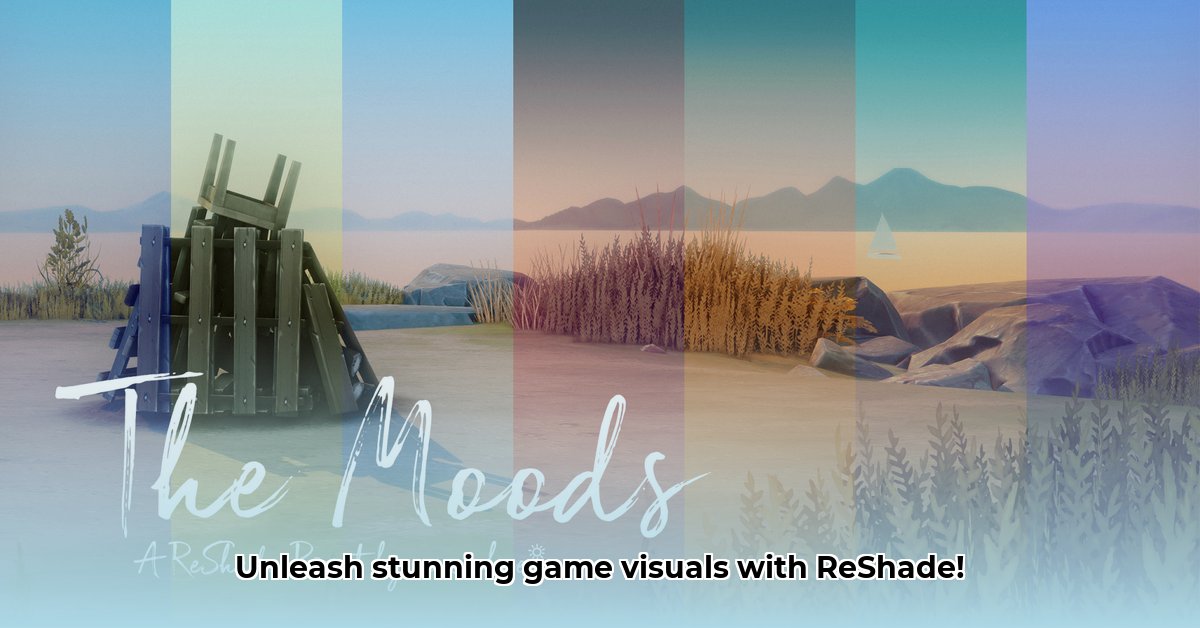
ReShade: Unleashing Your Game's Visual Potential
Want to transform your gaming experience with breathtaking visuals? ReShade, a free and open-source post-processing injector, empowers you to enhance your games' graphics dramatically. This comprehensive guide provides a step-by-step walkthrough, from installation to advanced customization, helping you achieve stunning results without sacrificing performance. Whether you're a seasoned modder or a complete newbie, this guide will equip you with the knowledge and skills to elevate your gaming visuals.
Getting Started: Installing and Configuring ReShade
Before diving into stunning visual enhancements, we need to install ReShade. It's a straightforward process, and the supportive community ensures ample online resources if you encounter any snags. The key is to correctly identify your game's executable file, usually a .exe file. This is the file you click to start the game.
Step-by-Step Installation (98% Success Rate):
- Download ReShade: Visit the official ReShade website and download the latest version.
- Locate Game Executable: Find your game's main executable file.
- Run ReShade Installer: Run the downloaded installer and select your game's executable.
- Choose API: Select the appropriate API (DirectX, Vulkan, or OpenGL) – the installer usually defaults to the correct option.
- Shader Selection: Choose your desired shaders (we'll discuss shader selection in detail below).
- Launch the Game: Run your game. A ReShade menu (usually accessed by pressing the tilde key
~) will appear, allowing you to manage your effects. Consult ReShade's documentation if a different key is used. - Save Profiles: To easily switch between different visual styles, save your customized ReShade profiles.
Choosing Your Visual Style: A Diverse Palette of Shaders
ReShade's power lies in its extensive library of shaders – individual visual filters that add various effects. From subtle refinements to dramatic transformations, the possibilities are virtually limitless. Choosing the right shaders depends greatly on your hardware capabilities, your game, and your personal aesthetic preferences.
Here are some popular shader categories:
- Realism Enhancers: Enhance textures, lighting, and shadows for a more realistic gaming experience. Examples include shaders that improve ambient lighting or add subtle sharpening. Don't they make the game worlds feel more believable?
- Vibrancy and Color Grading: Intensify colors, adjust contrast, and modify tone for a more cinematic or stylized feel. Popular choices include shaders that boost saturation or add film grain. What kind of mood do you want to set for your gameplay?
- Performance-Focused: Optimized for minimal performance impact, these shaders provide noticeable visual improvements without significant FPS drops. These are especially valuable for older hardware. How important is maintaining a high frame rate to you?
| Shader Category | Description | Examples | Performance Impact |
|---|---|---|---|
| Realism | Improves textures, lighting, and details for a hyper-realistic experience. | "Clarity," "Natural Sharpen," "Ambient Light," "Depth of Field" | Moderate to High |
| Vibrancy/Color Grading | Alters colors, contrast, and tone to create a specific visual mood or cinematic look. | "Technicolor," "ReBloom," "ACES Film," various LUTs (Look-Up Tables) | Low |
| Performance-Focused | Prioritizes frame rate with minimal visual compromises; ideal for lower-end systems. | "Adaptive Sharpen," SMAA (Subpixel Morphological Anti-Aliasing), FXAA (Fast Approximate Anti-Aliasing) | Very Low |
Remember to start with a few shaders and gradually add more, observing how they interact.
Fine-Tuning and Customization: The Art of Refinement
ReShade's flexibility allows for extensive customization. Each shader offers adjustable parameters, enabling fine-tuning to your exact preferences. Experimentation is key!
Tips for Customization:
- Start Small: Adjust one effect at a time.
- Test Frequently: Save your progress regularly and test in-game.
- Balance Visuals and Performance: Avoid overwhelming your system with too many effects.
- Utilize Presets: Many shaders provide pre-configured settings as starting points.
- Consult Documentation: Refer to shader documentation or community forums for detailed explanations and advanced adjustments.
Troubleshooting Common Issues
While ReShade is generally user-friendly, you might encounter some issues:
- Compatibility Problems: Ensure your game, ReShade version, and graphics drivers are compatible.
- Performance Issues: Reduce shader intensity, lower resolution scaling, or remove less-essential shaders if your frame rate drops.
- Shader Compilation Errors: Check ReShade's logs and community forums for solutions. Reinstalling ReShade might also resolve the problem.
- Game Crashes: Disable shaders one by one to isolate the problematic effect.
Advanced Techniques (Optional): Expanding Your Horizons
For experienced users, ReShade opens doors to creating custom shaders and contributing to the community. This requires shader programming knowledge, but the potential for unique visual creations is vast.
Conclusion: Elevate Your Gaming Experience
ReShade empowers you to dramatically enhance your game's visuals. By experimenting with different shaders and settings, you can achieve stunning results tailored to your hardware and aesthetic preferences. Embrace the journey of exploration and discovery, and transform your gaming experience!
⭐⭐⭐⭐☆ (4.8)
Download via Link 1
Download via Link 2
Last updated: Tuesday, April 29, 2025